Payments and Refunds
Tuition Fees are due on the first day of your program.
For your convenience, you may submit your tuition payments online using PayMyTuition or Online Banking. Your application and confirmation fees must be paid through MyDashboard.

Application Fees
Canadian
(All Programs)
$50
International
(All Programs)
$100
Police Science
Cadet Program
$125
Tuition & Fees
Tuition amounts vary by program. For a complete breakdown of your program's tuition cost and fees, visit your program page.
Payment Options
Application & Confirmation fees must be paid using MyDashboard.
For your convenience, you may submit your tuition payments online using PayMyTuition or Online Banking.
Application and confirmation fees must be paid using MYDashboard.
Payments received through PayMyTuition will not confirm your seat in a program.
If you have any questions about your confirmation fee, please contact admissions@hollandcollege.com.
You have three weeks from the date of your acceptance to confirm your intention to attend Holland College.
If you want to make a payment on your Holland College account using online banking:
- Start by signing into your bank account through your bank’s website.
- Add “Holland College” as a payee to your account.
- Use your 7 digit student ID number as the account number when setting up Holland College as a payee.
- Once Holland College has been added to your list of payees you can make your online payment.
- These payments will be reflected on your student account within three business days.
- Make note of the confirmation number given to you from your bank, as this is your proof of payment.
Step 1
Log into your Self-Service account and select Financial Information from the navigation panel, and then click on PayMyTuition Payment and Refunds.
Step 2
Click on the PayMyTuition banner to be redirected to the PayMyTuition portal.
Step 3
Select the Make A Payment Button in the PayMyTuition portal to initiate your transaction.
NOTE: Confirmation Fees must be paid using your Dashboard. Payments received through PayMyTuition will not confirm your seat in a program.
If you have any questions about your tuition deposit, please contact admissions@hollandcollege.com.
Additional Information about PayMyTuition
PayMyTuition’s Rate Guarantee for International Students
Need Assistance?
The PayMyTuition student support team is happy to help:
Connect with PayMyTuition directly by calling 1.855.663.6839 (toll-free) or through a local country contact number.
You can also reach PayMyTuition Support at support@paymytuition.com or through the support page.
No matter what time zone you are in, you will have a dedicated customer support team available to you through live chat, email, and phone to answer any of your questions and help you with the payment process.
Initiate a Refund
To initiate a refund, you must contact your local Finance Clerk and complete the Student Refund Request form. All requests will be reviewed to determine if a credit exists on your account and if the credit is eligible to be refunded. Once the process for your refund has been initiated by Holland College, students will receive an email notification from PayMyTuition with instructions on the next steps:
Processing Time
Refunds typically take between 4 to 6 weeks to process from the time you submit your refund request for processing. Within 2 to 6 business days from the time your refund has been processed from Holland College to PayMyTuition, you will receive automated emails confirming your refund and the required next steps.
Refunds through PayMyTuition
Holland College has partnered with PayMyTuition for domestic and international refund processing. PayMyTuition will remit the refund to domestic students via credit card or Interac, and to international students via credit card or bank transfer.
With PayMyTuition, students have the option of retrieving their Interac or bank transfer instructions directly through the PayMyTuition portal.
Any refunds processed back to your credit card will only be completed to the credit card on record if your refund has been requested and processed 90 days following the completion of your payment.
Refund Return to Credit Card
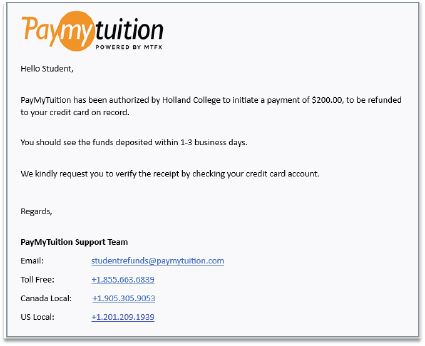
If your refund is eligible for return to your credit card, you will receive the following notification from PayMyTuition once your refund is in progress:
Accessing Your Refund
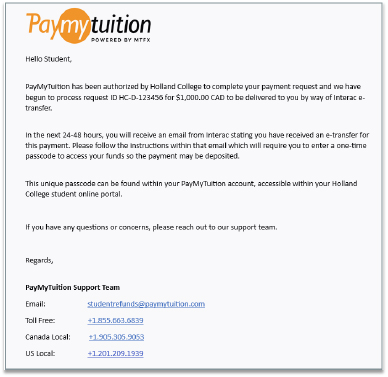
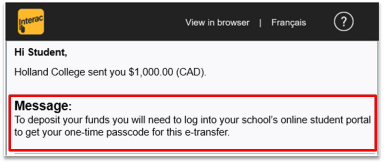
You will then receive an Interac e-Transfer email instructing you to log into your Self-Service to retrieve your one-time pass code, which will allow you to securely access and collect your refund payment:
To Access your PayMyTuition account and One-Time Pass Code:
Proceed to log in to your Self-Service account
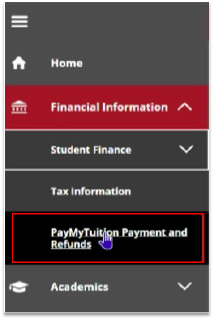
Once you have accessed Self-Service, proceed to the Financial Information section within the sidebar panel and select “PayMyTuition Payment and Refunds”:
Next, click on the “PayMyTuition” banner to be redirected to the PayMyTuition portal:
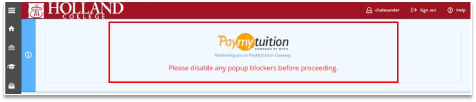
Once you are redirected to the PayMyTuition portal, select the “Refunds” tab to access your refund portal:

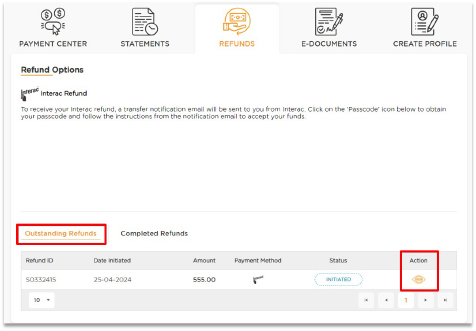
Review the “Outstanding Refunds” section for any active refunds, and click on the one-time pass code icon in the “Action” column to view your pass code:
Return to the Interac notification and select to deposit the funds at your desired financial institution:
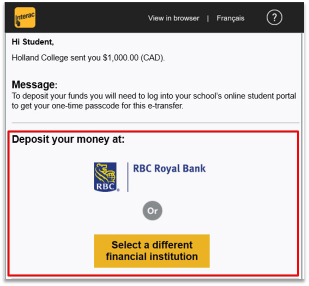
*If your email address is registered for auto-deposit through your bank, you won't require a one-time pass code to finalize the deposit. Instead, when you select to deposit your funds, you’ll sign into your financial institution and the refund will auto-deposit upon signing in.
Important: Please complete the e-Transfer process within 30 days, after which it will expire. If you do not retrieve your pass code and collect your funds prior to the expiration date, your refund will be automatically cancelled, and the funds will be returned to your student account. You will be required to submit a new refund request should you want the funds returned to you.
Completing Your Refund
Enter beneficiary details:
Complete the online refund beneficiary instruction form, which requires currency, identification documentation (either passport or driver’s license), banking and beneficiary information.
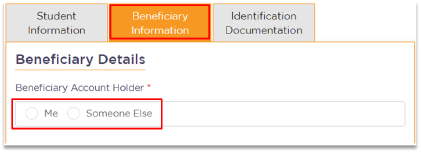
You may choose to deposit the funds into someone else’s bank account. When you are directed to the PayMyTuition refund form, you will have the option within the Beneficiary Information tab to select someone else as the recipient and input their bank information:
Complete verification:
Upon receipt of your completed beneficiary instructions, PayMyTuition will verify your request for accuracy. They will complete fraud and compliance checks to comply with various anti-money laundering and compliance laws.
Payment confirmation:
PayMyTuition will send you a confirmation email once your beneficiary information has been verified and approved. You will receive a PDF summary that is password protected. This PDF can be accessed using the bank account number that you provided for your beneficiary bank as the password.
Refund processed:
Once your refund has been processed, you will receive a notification that your refund is complete. Please allow 3 to 5 business days for the payment to be deposited to your account.
Need Assistance?
Connect with PayMyTuition directly by calling 1.855.663.6839 (toll-free) or through one of the local country contact numbers.
You can also reach PayMyTuition Support at support@paymytuition.com or through their support page.
No matter what time zone you are in, you will have a dedicated customer support team available to you through live chat, email, and phone to answer any of your questions and help you with the refund process.
Once our Admissions Team has processed your refund request, you will receive an email notification from PayMyTuition with instructions on the next steps:
You will then receive an Interac e-Transfer email instructing you to log into your Self-Service to retrieve your one-time pass code, which will allow you to securely access and collect your refund payment:
To Access your PayMyTuition account and One-Time Pass Code:
Proceed to log in to your Self-Service account
Once you have accessed Self-Service, proceed to the Financial Information section within the sidebar panel and select “PayMyTuition Payment and Refunds”:
Next, click on the “PayMyTuition” banner to be redirected to the PayMyTuition portal:
Once you are redirected to the PayMyTuition portal, select the “Refunds” tab to access your refund portal:
Review the “Outstanding Refunds” section for any active refunds, and click on the one-time pass code icon in the “Action” column to view your pass code:
Return to the Interac notification and select to deposit the funds at your desired financial institution:
*If your email address is registered for auto-deposit through your bank, you won't require a one-time pass code to finalize the deposit. Instead, when you select to deposit your funds, you’ll sign into your financial institution and the refund will auto-deposit upon signing in.
Important: Please complete the e-Transfer process within 30 days, after which it will expire. If you do not retrieve your pass code and collect your funds prior to the expiration date, your refund will be automatically cancelled, and the funds will be returned to your student account. You will be required to submit a new refund request should you want the funds returned to you.
Completing Your Refund
Enter beneficiary details:
Complete the online refund beneficiary instruction form, which requires currency, identification documentation (either passport or driver’s license), banking and beneficiary information.
You may choose to deposit the funds into someone else’s bank account. When you are directed to the PayMyTuition refund form, you will have the option within the Beneficiary Information tab to select someone else as the recipient and input their bank information:
Complete verification:
Upon receipt of your completed beneficiary instructions, PayMyTuition will verify your request for accuracy. They will complete fraud and compliance checks to comply with various anti-money laundering and compliance laws.
Payment confirmation:
PayMyTuition will send you a confirmation email once your beneficiary information has been verified and approved. You will receive a PDF summary that is password protected. This PDF can be accessed using the bank account number that you provided for your beneficiary bank as the password.
Refund processed:
Once your refund has been processed, you will receive a notification that your refund is complete. Please allow 3 to 5 business days for the payment to be deposited to your account.
Connect with PayMyTuition directly by calling 1.855.663.6839 (toll-free) or through one of the local country contact numbers.
You can also reach PayMyTuition Support at support@paymytuition.com or through their support page.
No matter what time zone you are in, you will have a dedicated customer support team available to you through live chat, email, and phone to answer any of your questions and help you with the refund process.